

Alert Plus provides flexible options for sending alert emails, depending on how your solution is hosted.
This article outlines the available configurations for:
- Customers hosted in the Bamboo shared Azure environment
- Customers hosting Bamboo Azure Services in their own Azure tenant
Scenario 1: Hosted in the Bamboo Shared Azure Environment
If you are running Alert Plus in the Bamboo shared Azure environment, email delivery is handled through one of the following:
- Exchange
- SendGrid
- SMTP
Recommended Options
Due to the potentially high volume of alerts generated by Alert Plus:
- ✅ SMTP – Recommended
- ✅ SendGrid – Recommended
- ⚠ Exchange – Not recommended for high-volume alerting scenarios
Exchange may encounter throttling or performance limitations when processing large volumes of automated alerts.
Exchange
From Address: This field **will be the tenant level default "From Address" for alerts that are setup without a specific denoted alert level "From Address".
**Functionality for this field is scheduled to be activated in the May 2026 release
Reply-To Address: The email address that emails should be sent to if a user clicks "reply" on an alert plus generated email
SendGrid (by Twilio)
This service is included as part of your subscription price.
What’s Included
- Email delivery via SendGrid
- Ability to customize the Reply-To address
- Reliable, production-grade email infrastructure
- No additional configuration required
Limitations in the Shared Environment
- The From address cannot be customized
(It is controlled by the shared SendGrid configuration.)
Need More Control?
If your organization requires:
- Customization of the From address
- Full control over SendGrid settings
- Advanced email configuration options
You may purchase your own SendGrid subscription and connect it to Alert Plus.
SendGrid pricing information is available here:
https://www.twilio.com/en-us/products/email-api/pricing
The Essentials Plan is approximately $20 per month and allows up to 100,000 emails per month, which is sufficient for most Alert Plus customers.
⚠ Important Recommendation
We strongly recommend not using the Free Trial version of SendGrid.
The trial version:
- Automatically expires after 30 days
- May cut off email delivery without notice
- Can result in failed alerts or missed notifications
Reconfiguration after trial expiration may also result in temporary alert disruption.
Configuration Steps
Configuring your own SendGrid account is simple:
- Create your SendGrid account
- Generate an API key
- Enter the API key in Bamboo Tenant Manager
No additional complex setup is required.

SMTP
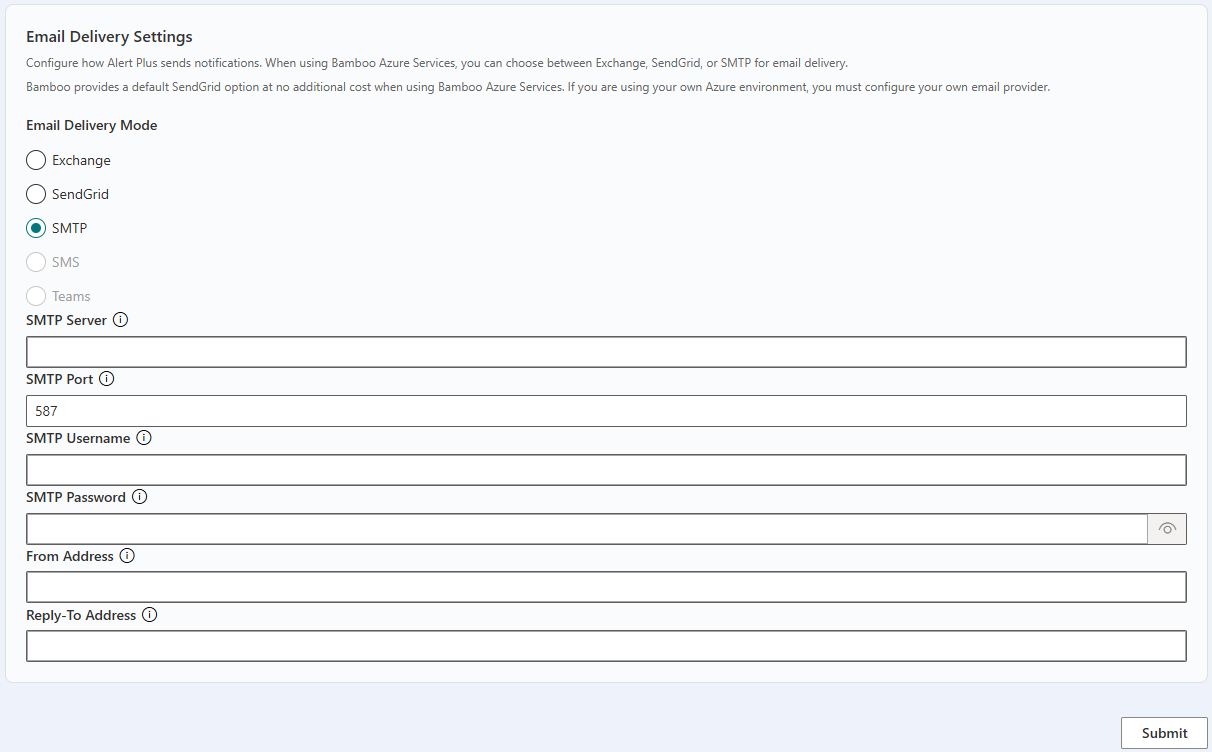
SMTP Email Delivery Configuration – Step‑by‑Step
1. Select Email Delivery Mode
- Choose SMTP as the Email Delivery Mode.
- This configures the application to relay outbound mail through a standards‑based SMTP server (RFC 5321), rather than a native Exchange or SendGrid integration.
2. SMTP Server
Field: SMTP Server
- Enter the fully qualified domain name (FQDN) or IP address of your SMTP relay.
- Examples:
- smtp.office365.com (Microsoft 365)
- mail.company.com (internal relay)
3. SMTP Port
Field: SMTP Port
- Set to 587 (recommended and already populated).
- Port 587 is the standard submission port that supports STARTTLS and authenticated mail submission.
Why 587:
- Enforces encryption in transit
- Avoids legacy insecure behavior associated with port 25
- Required by most cloud mail providers
4. SMTP Authentication Username
Field: SMTP Username
- Enter the username used for SMTP AUTH.
- Typically this is:
- A full email address (e.g., alerts@company.com)
- Or a relay account name provided by your mail service
Important:
This account must be explicitly permitted to authenticate and relay mail. For Microsoft 365, SMTP AUTH must be enabled on the mailbox.
5. SMTP Password
Field: SMTP Password
- Enter the password (or app password, if required).
- If using:
- Microsoft 365 with MFA → use an App Password
- Third‑party relay → use the API/SMTP credential they provide
6. From Address
Field: From Address
- Enter the email address that should appear in the From: header of your tenant's alerts
- Example:
- alerts@company.com
- no-reply@company.com
7. Reply‑To Address
Field: Reply‑To Address
- Enter the mailbox where replies should be delivered.
- Example:
- support@company.com
- it-operations@company.com
Common Troubleshooting Checks (Technical)
- Authentication failure → SMTP AUTH disabled or wrong credential
- Timeout / connection error → Firewall blocking port 587
- Message rejected → From Address not authorized
- Email sent but not delivered → SPF/DKIM/DMARC misalignment
Scenario 2: Hosted in Your Own Azure Tenant
If your organization hosts Bamboo Azure Services within your own Azure tenant, you can configure much the same options in how alert emails are sent, you are simply responsible for your own azure hosting.
You may configure:
- SMTP Server
- SendGrid
- Exchange
Configuration Support
Bamboo will assist with email configuration as part of your Azure Services installation and setup process.
Questions?
If you have any questions regarding email configuration or would like assistance setting up your preferred method, please contact:
Bamboo Support
Support@BambooSolutions.com
Comments
0 comments
Please sign in to leave a comment.